
· 6 min read
New: A Rental Mileage Tracker That Works Out the Drive for You
By Avery Ledger — HourProof AI Editor
HourProof on iPhone and Android can now put a place on an activity and work out the drive to it. Once the app knows where the work happened, it offers the trip from your starting address: round trip or one way, with the drive time and an estimate at the mileage rate on file for that date. One tap adds it. It arrives in HourProof 1.9.5.
Two ways to add a location
- On any activity you log: set Where yourself. One tap for the property's address, or your current location, or a search.
- With a timer: the app notes where you are when the timer starts and again when it stops, and fills Where in for you.
Both end in the same place: an entry that knows where the work happened, with the trip offered underneath. Before either one, the app needs two addresses.
First, add your starting address and your property's address
Your starting address is where your trips usually begin. Add it under Settings, in Location tagging: start typing and pick it from the list. It stays on your phone. Reports print the word “Home” and never the street, and work you log from home is recorded the same way: as “Home” with the time, without coordinates.
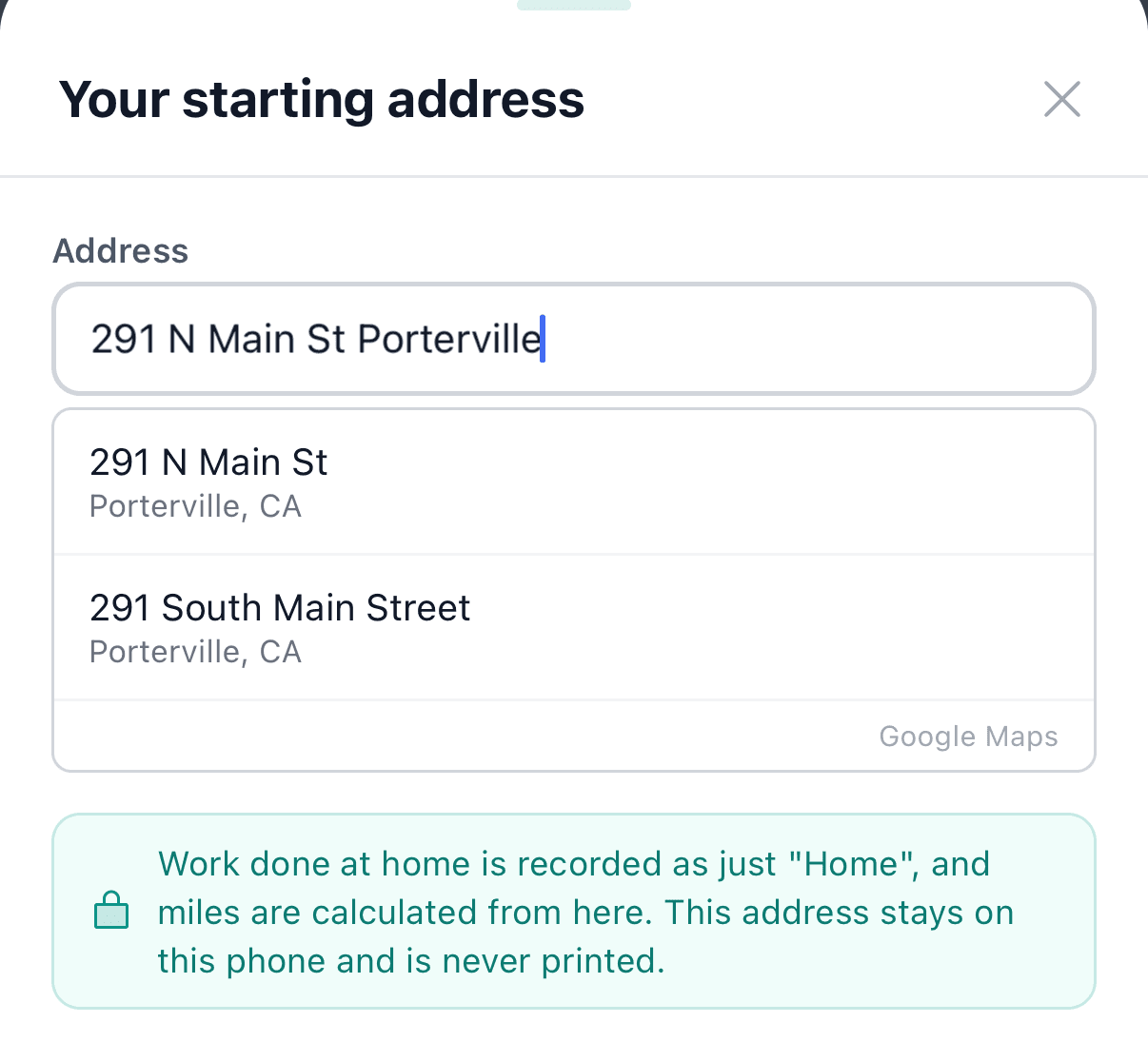
Each property's address goes in the property itself. Open the property, start typing in Location and pick the address from the list. A property that only has a city name still works for logging hours; it needs a picked address before the app can measure a drive to it or recognize that you are there.
You do both once.
How does a regular activity get its mileage?
Log the activity as you always have. In Where, tap the property's name. The mileage row stops being an empty field and reads like this:
Drive from Home · 63.8 mi round trip · $48.49 · 83 min drive
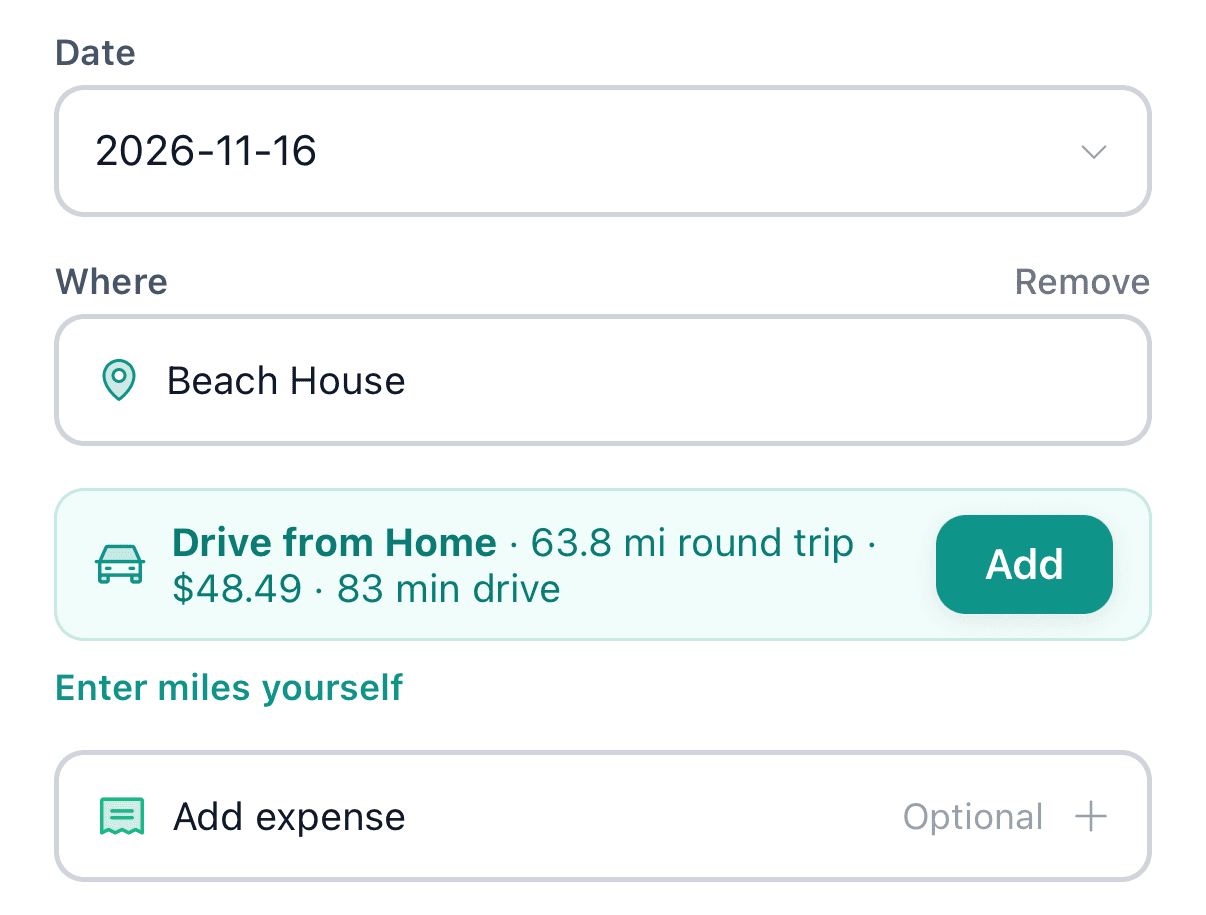
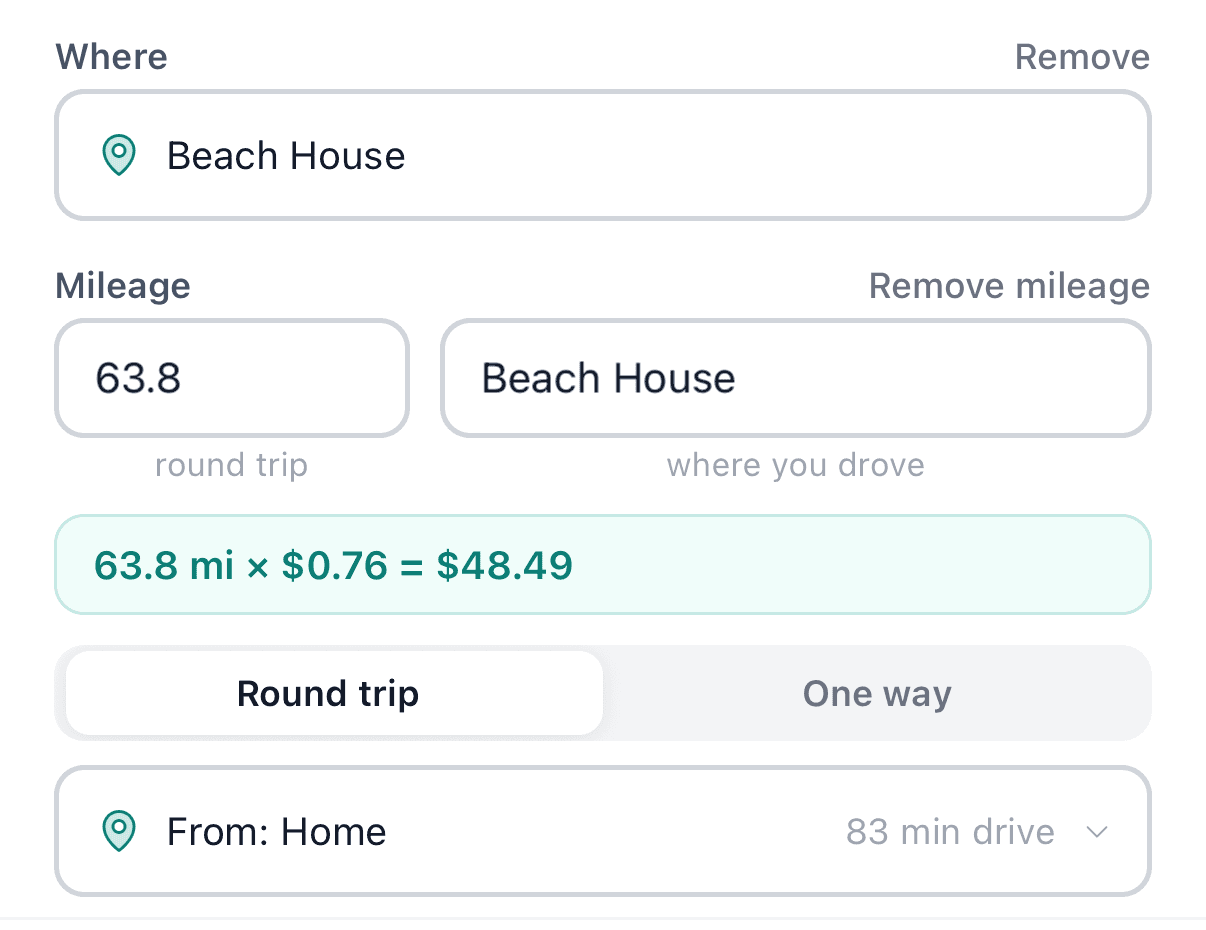
Tap Add and the miles, the destination and the drive time are filled in. The miles and the destination stay yours to change; the drive time is the route's estimate and is recorded as calculated. A Round trip / One way switch sits beside the miles, and Enter miles yourself is always one tap away if you took a detour the app could not know about.
Where does not have to be the rental. Search for the hardware store where you picked up a water heater element and the drive is measured to the store, while the entry still belongs to the property the errand was for. If a trip started from another rental rather than from home, change From for that one entry.
How does a timer add the location for you?
Start a timer the way you always have: the Timer button for a blank one, or a preset under Start Timer. It starts at once. While it runs, the app notes where you are. If that is one of your properties, the timer card says so and the entry is filed under that property.
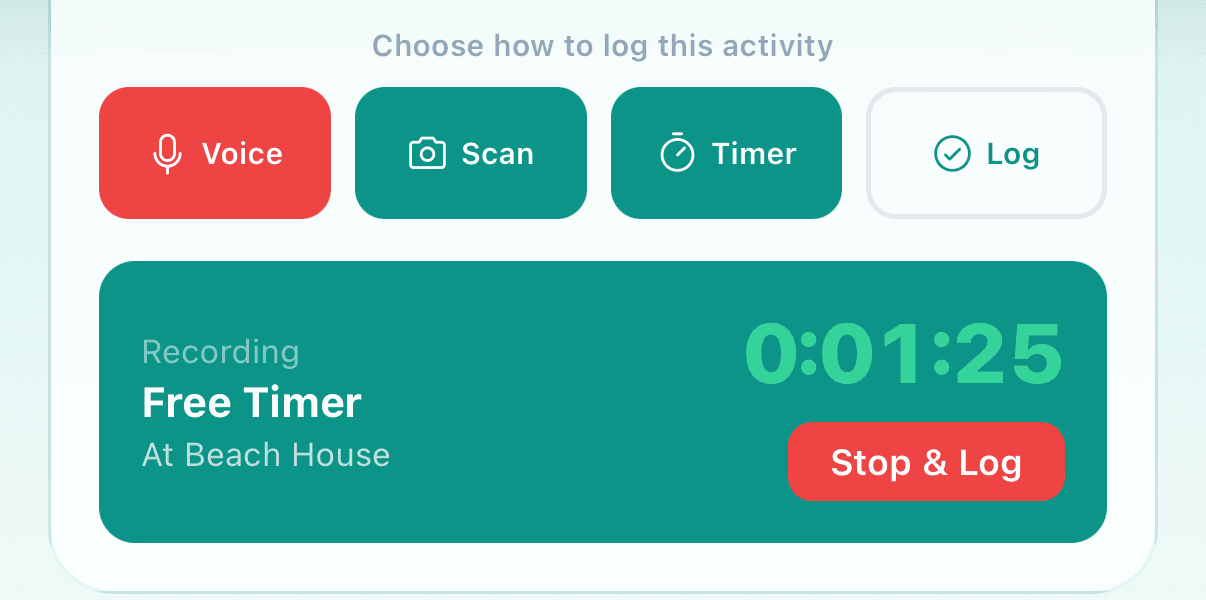
Tap Stop & Log and the app notes where you are again. The entry opens with Where already filled in and both tags beneath it: the time, the coordinates, how accurate the reading was, and how far it was from the property's address. Those are measurements, stated plainly. Directly below them is the same trip offer.
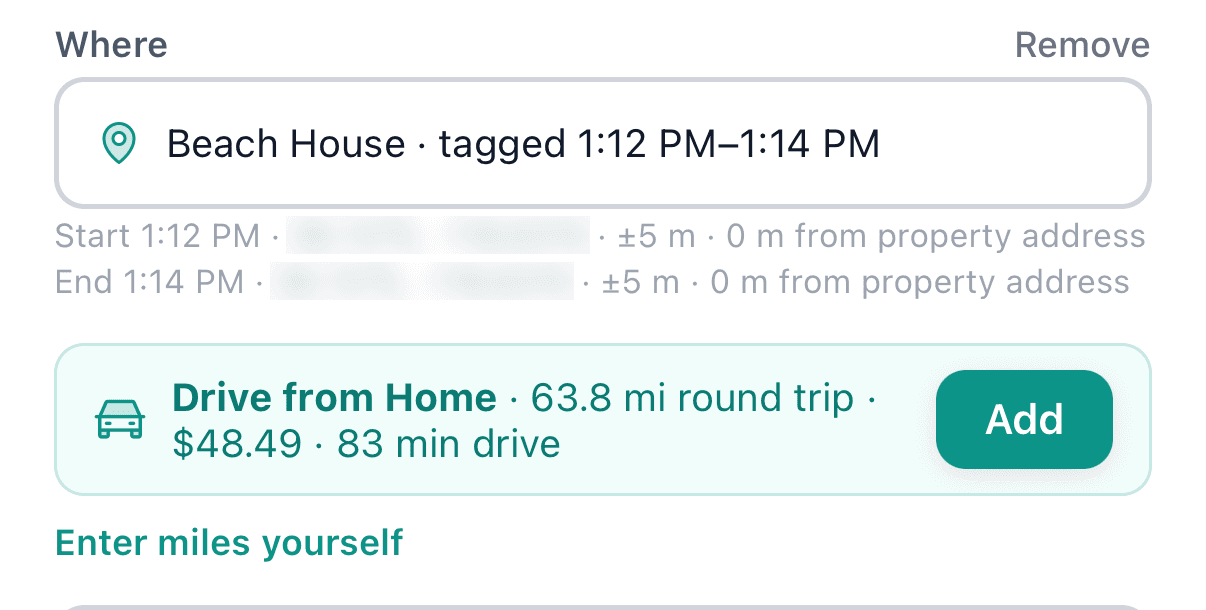
Tagging is off until you turn it on. The app offers it once, on a card titled “Tag where you work,” and the switch also lives in Settings. Your location is read when a timer starts and when it stops, never in the background.
Where do the miles come from?
From two addresses, not from a trail of GPS points. HourProof asks a routing service for the driving distance between your starting address and the place the work happened, the way a maps app would. A round trip is twice the one-way distance.
The app does not follow you while you drive. There is no background tracking and no trip recording to remember to start.
Does drive time count toward your hours?
No. Drive time is stored on its own line and reports label it “Travel time (not included in participation hours).” An 83-minute round trip to do 45 minutes of work is a 45-minute entry with a trip attached. Keeping the two apart matters because an hour total is only useful if it is accurate; our explanation of the STR 100-hour rule covers what the total is compared against.
What does the dollar amount mean?
It is the miles multiplied by the standard mileage rate HourProof has stored for the activity's date, and the form shows the sum. In the example above, 63.8 miles at a stored rate of 76 cents a mile comes to $48.49. Rates change, sometimes in the middle of a year, so the same drive in two different months can show two different amounts.
Treat the figure as arithmetic to review, not as a deduction you are owed or money saved on a tax bill. The earlier post on mileage on HourProof web explains the estimate in more detail.
Is a drive from home to your rental deductible?
Not automatically, and the app does not decide it. The offer says “Drive from Home” because that is where most trips begin. Trips between your home and a rental are generally treated as commuting unless your home qualifies as your principal place of business. IRS Publication 527 explains the distinction and the choice between the standard mileage rate and actual expenses.
A mileage entry is also not your whole vehicle record. Keep the total miles you drove in the year and the other details listed in IRS Publication 463, chapter 5. What HourProof gives you is the date, the distance, where the trip started and ended, and the rental work it was for, written down when it happened.
Where do the miles show up afterwards?
- Stats: a mileage card totals the year's miles and estimate.
- PDF report: a mileage summary by property and by rate period.
- Tax package: a trip-by-trip list that includes where each trip started.
- CSV export: the same details as columns, for a spreadsheet.
What is free, and what is Premium?
Typing miles into an activity yourself, with the date-based estimate, works on every plan, including Free. Location tags on timed entries and the calculated drive are part of Premium. In this release both are offered to the account owner; people you have added to log hours can still type their miles.
Try it on your next trip
Update HourProof on your phone and add your starting address and your property's address. Then set Where on the next activity you log, or turn on location tagging and start a timer on the next visit. HourProof organizes your records; confirm how a trip is treated, and any deduction, with a qualified tax professional.
General education, not individual tax advice. Avery Ledger is a fictional pen name for AI-created HourProof articles.